Gaming
Omarchy isn't just for pRoDUcTiVItY, it's also for having fun, and what's more fun than gaming? Omarchy ships with a whole suite of gaming options — Steam and RetroArch for native and retro play, Lutris and Heroic for non-Steam stores, Moonlight for PC streaming, Xbox Cloud Gaming + NVIDIA GeForce NOW for cloud, plus the evergreen Minecraft.
Thanks to Valve's incredible work on the proton compatibility layer, there are now tens of thousands of playable modern games on Linux. Oh, and did you know that the Steam Deck actually runs Arch!
All gaming installers live under Install > Gaming in the Omarchy menu (Super + Alt + Space). If you ever want to undo one, use Install > Gaming > Remove.
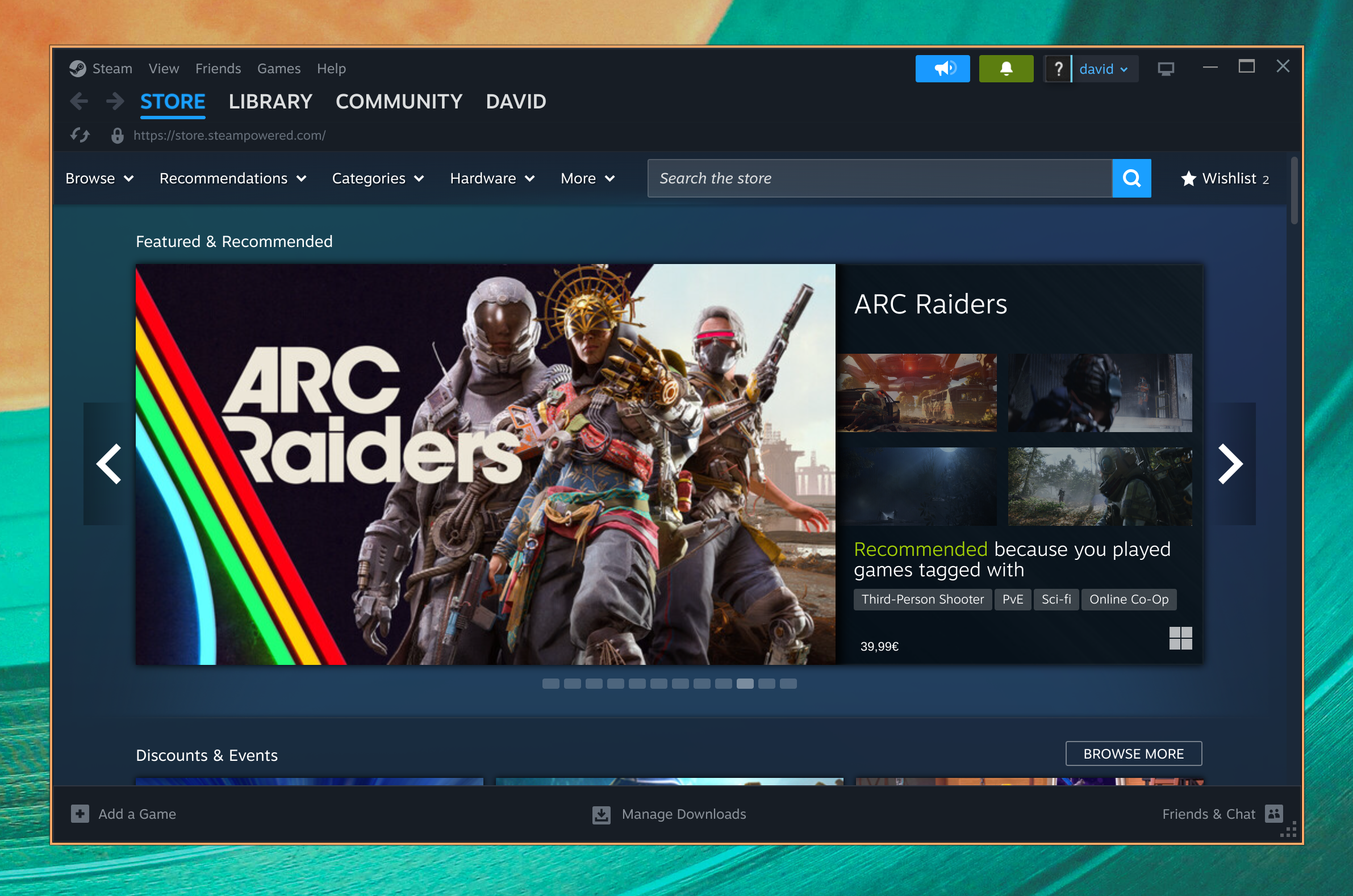
Steam
Install Steam by selecting Install > Gaming > Steam from the Omarchy menu (Super + Alt + Space).
After you've installed it, you'll be able to launch Steam with Super + Space.
Note that Steam can take 10-20 seconds to start up, and it's not going to provide any visual feedback that it's loading.
RetroArch
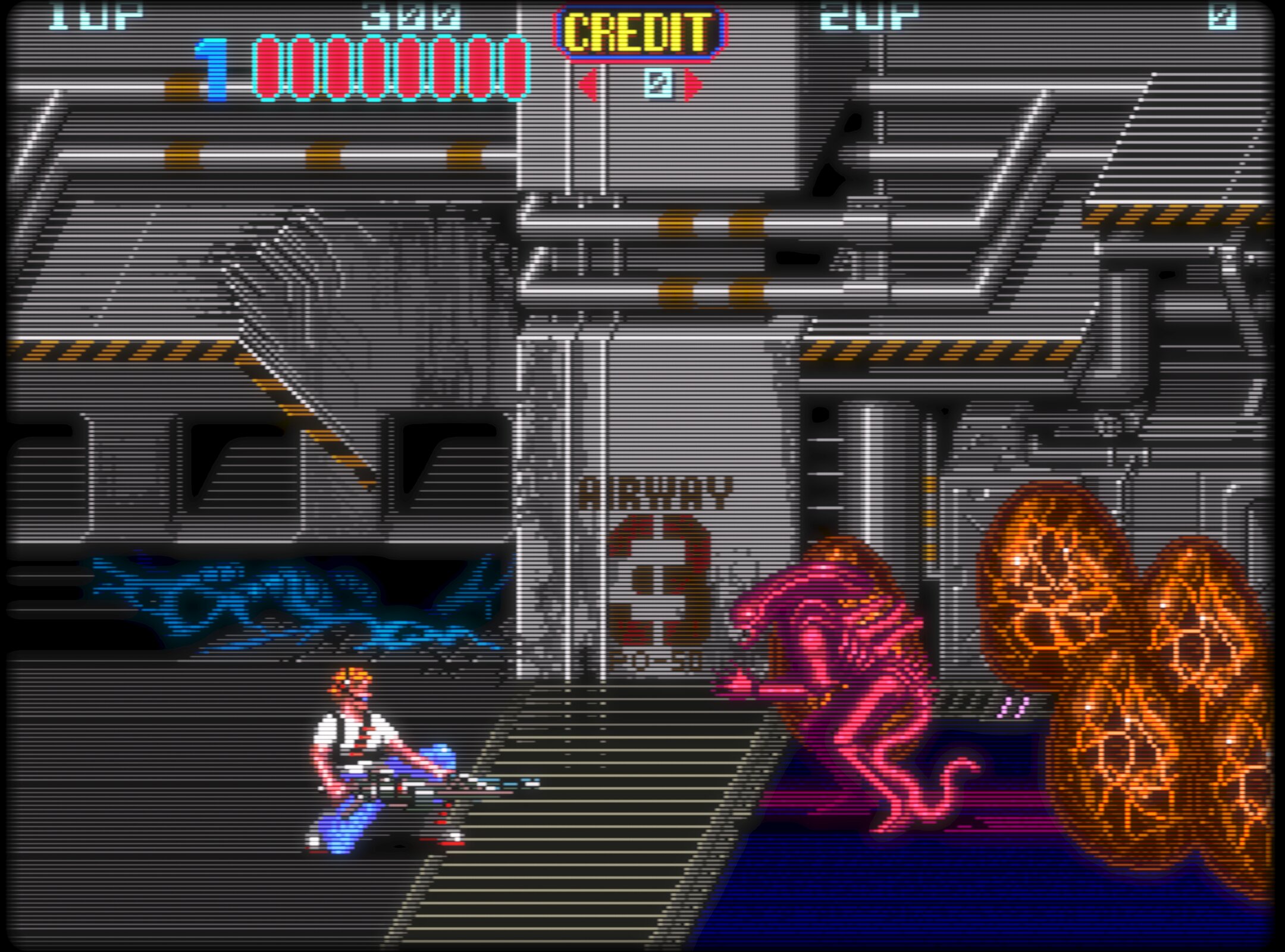
Install RetroArch by selecting Install > Gaming > RetroArch from the Omarchy menu (Super + Alt + Space).
RetroArch is fully preconfigured with the beautiful CRT Royale shader for that perfect retro look.
To get going:
- Drop your BIOS and ROM files into
~/Games. - Launch RetroArch with
Super + Spaceand typingretro. - Scan the
~/Gamesdirectory and you're ready to play.
Xbox Cloud Gaming
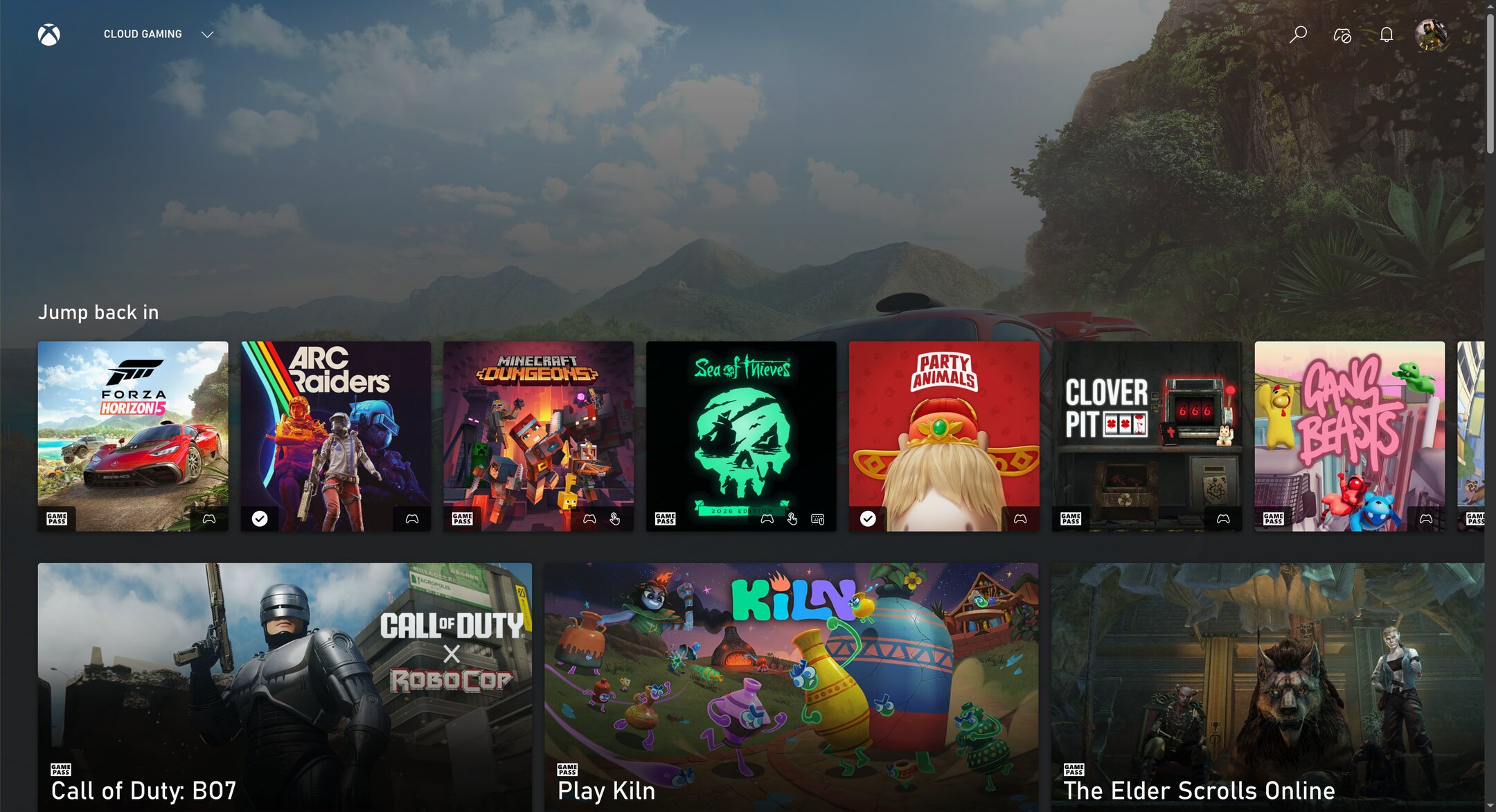
Install the Xbox Cloud Gaming web app by selecting Install > Gaming > Xbox Cloud Gaming from the Omarchy menu (Super + Alt + Space). It's "just" a web app for the service, but it's quick to start and runs great at 1080p.
If you already have Xbox Game Pass, this is a solid way to play Fortnite and other titles you can't run natively on Linux.
NVIDIA GeForce Now
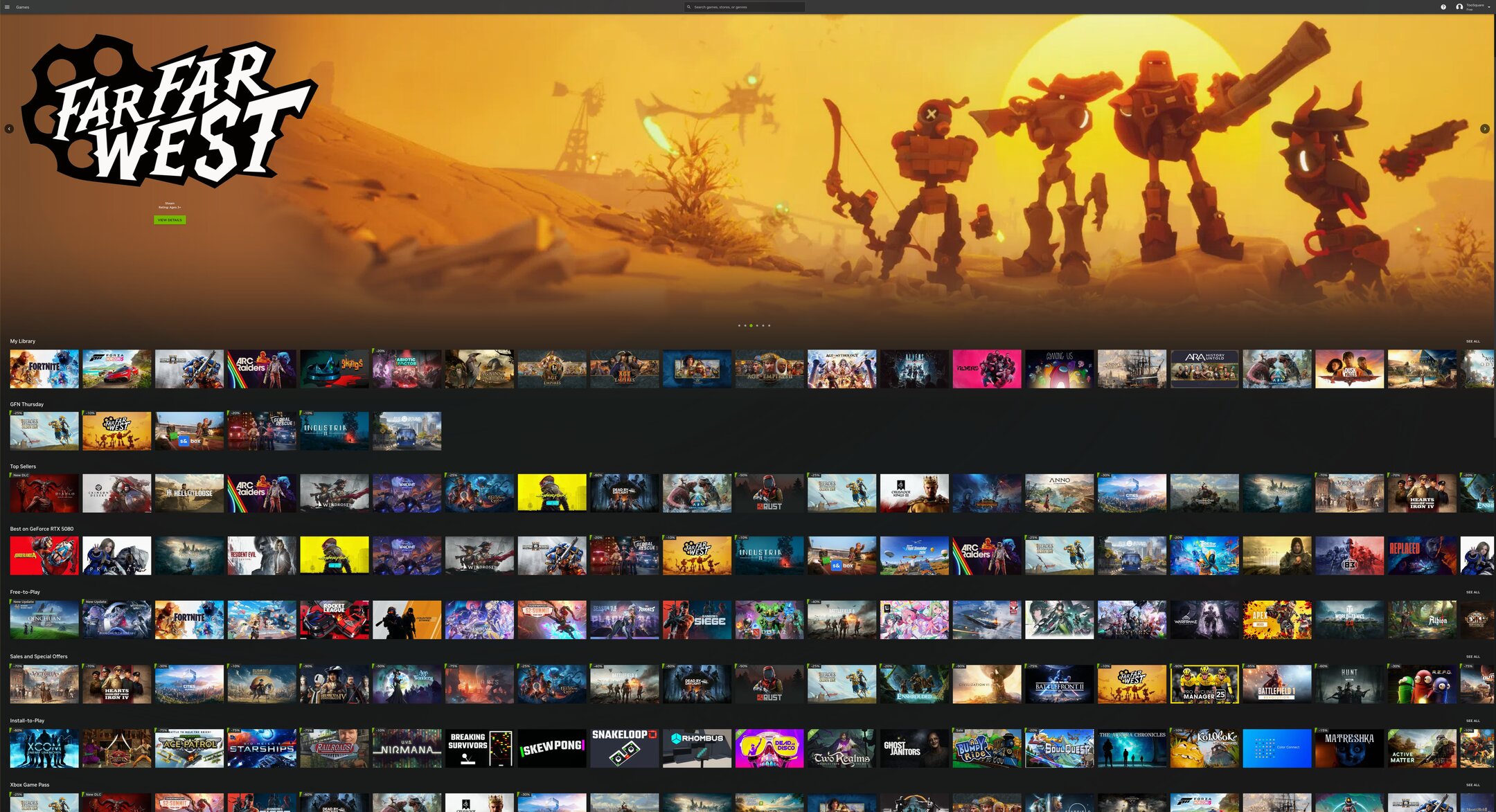
Install the cloud-gaming service NVIDIA GeForce NOW by selecting Install > Gaming > NVIDIA GeForce Now from the Omarchy menu (Super + Alt + Space). Another great way to play titles that aren't available natively on Linux.
Minecraft
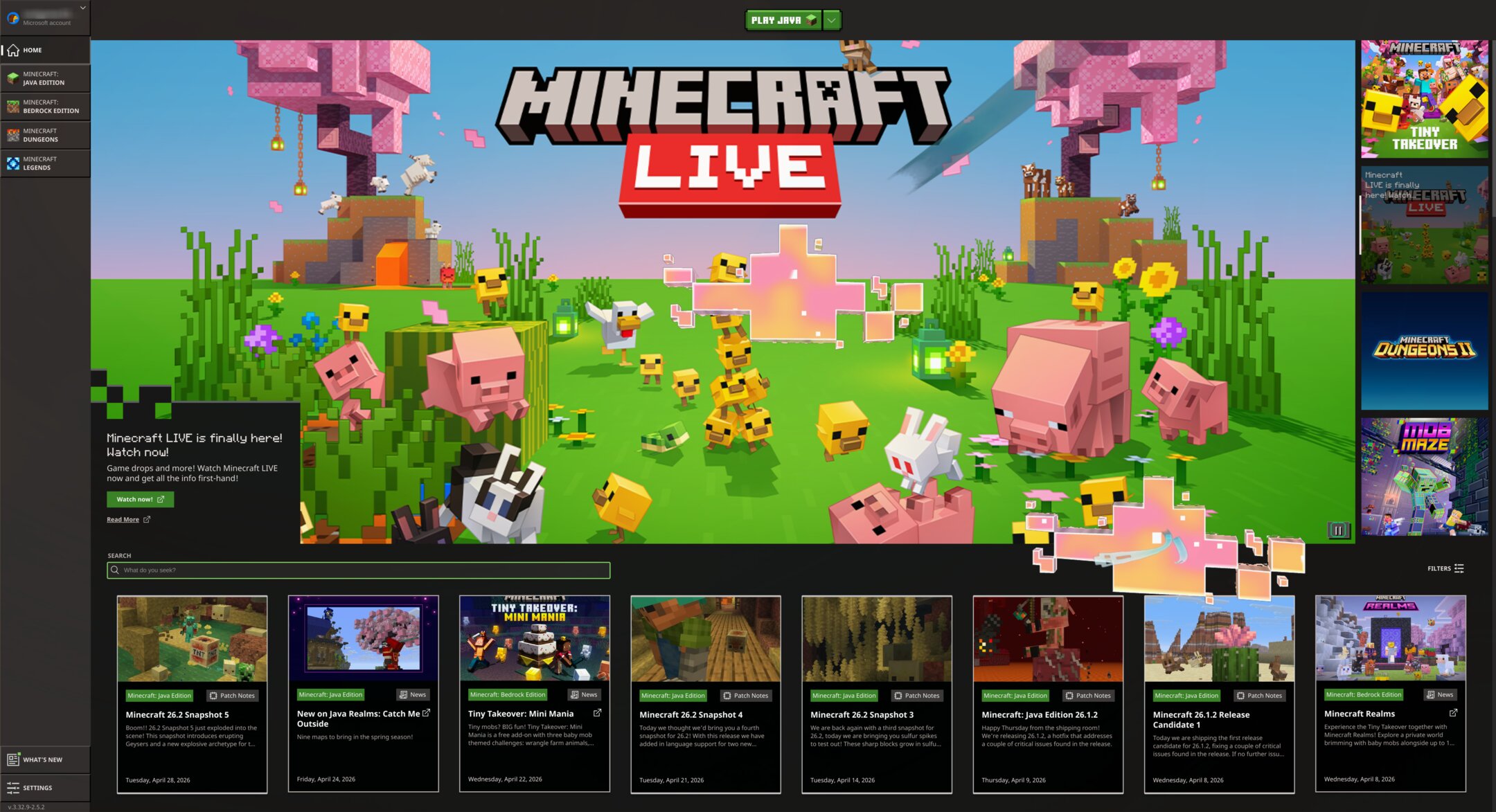
Install Minecraft by selecting Install > Gaming > Minecraft from the Omarchy menu (Super + Alt + Space).
Like Steam, note that it can take a while after logging in or starting up for the next screen to appear, and you're not going to get any feedback while you're waiting.
Xbox Controllers
Install support for Bluetooth Xbox controllers by selecting Install > Xbox Controllers from the Omarchy menu (Super + Alt + Space). Pair the controllers via Bluetooth and they'll work in all your games. You don't need this if you're just hardwiring your controller with a USB-C cable.
Moonlight (Game streaming from a PC)
Install the Moonlight client by selecting Install > Gaming > Moonlight from the Omarchy menu (Super + Alt + Space). Moonlight streams games from a Windows PC running Sunshine.
If both your Omarchy machine and the remote gaming PC are hardwired, the experience is indistinguishable from playing locally. Crank the resolution up to native, set the refresh to 120Hz, and max the bitrate — this is the best way to play competitive shooters like Fortnite on Linux.
Lutris (Battle.net games)
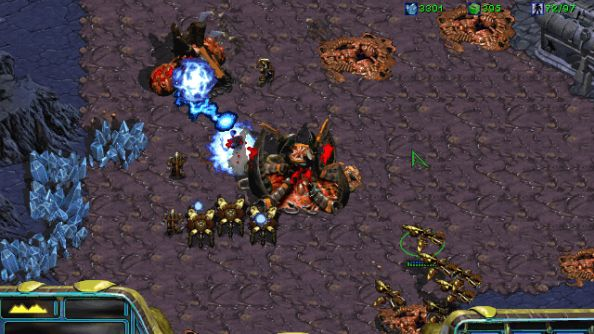
Install Lutris by selecting Install > Gaming > Lutris from the Omarchy menu (Super + Alt + Space). Lutris is the way to play Battle.net titles like Diablo, Starcraft, and World of Warcraft on Linux.
Installation is a little janky and looks like nothing is happening at times — just be patient, it's working in the background.
Heroic Launcher (Epic Games)
Install the Heroic Launcher by selecting Install > Gaming > Heroic Launcher from the Omarchy menu (Super + Alt + Space). Heroic lets you run Epic Games titles, like OddSparks, that don't rely on anti-cheat. Sadly, that means no Fortnite and no Rocket League — until Tim Sweeney comes to Linux, this is as close as it gets.
Like Lutris, it can feel slow and janky while installing games. Give it time.