
Getting Started
Omarchy is installed using an ISO. It's designed for a dedicated drive, so dual-booting requires two disks in your machine (unless you do a manual install to work around this). The installation will wipe the selected drive and use full-disk encryption, so be sure to take a backup before using an existing drive!
Download the Omarchy ISO first, put it on a USB stick (use balenaEtcher on Mac/Windows or caligula on Linux), and boot off the stick.
You must turn off Secure Boot and/or TPM in the BIOS. You have to turn these off to be able to install Omarchy. They're Microsoft security schemes meant for Windows and Microsoft-affiliated Linux distributions.
Then answer the configuration questions, and confirm them like this:
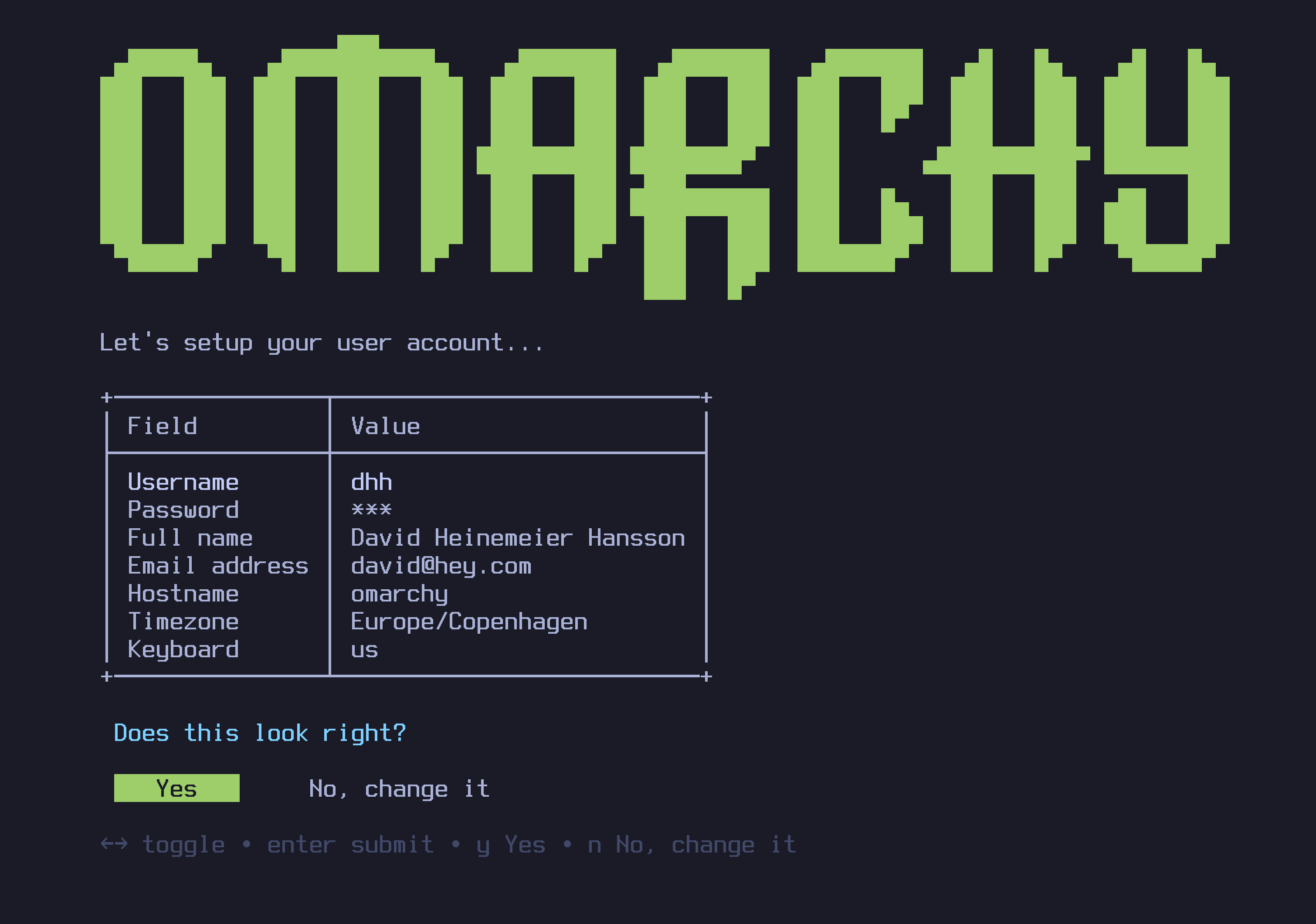
Then select a drive for your installation, and sit back and watch the installation show go. It takes between 2-10 minutes, depending on the speed of your computer.
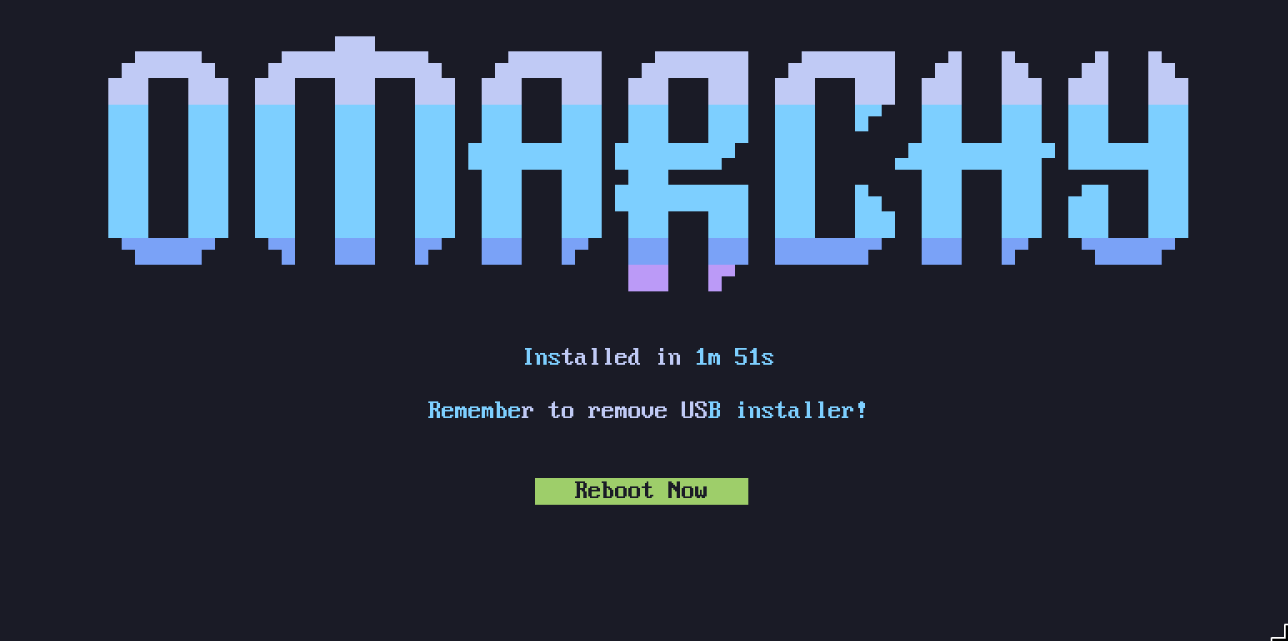
Now you're ready to Omarchy!
Use a wired or 2.4ghz keyboard!
The full-disk encryption won't allow you to enter the password from a Bluetooth keyboard at startup. Just like you can't use a Bluetooth keyboard to enter the BIOS on a PC. You'll need a keyboard that either uses a 2.4ghz dongle or a cable (which is much nicer for latency anyway!). I personally love the Lofree Flow84!
No-encryption installations
Omarchy is installed with encryption by default. It's the safe, reasponsible choice for any computer that can possibly be lost or stolen. You don't want anyone with access to your hardware to be able to get your data!
But in special circumstances, like remote Omarchy installs on protected computers or for throw-away installations without sensitive data, you may want to install without encryption. You can hit Ctrl + U on the disk formatting confirmation to switch to an encryption-less installation.
Help if you're stuck
If you get stuck, you can usually find someone willing to help in the #omarchy-help channel on the community Discord.
Use manual installation for special needs
If you have special needs, like installing Omarchy onto M-Series MacBooks Asahi Alarm or because you want to try dual-booting on a single drive, you should follow the instructions for a manual installation.